
Linux Server Hardening Checklist for Ubuntu and RHEL
A practical Linux server hardening checklist for Ubuntu and RHEL: SSH, sudo, auto updates, firewall, mount options, sysctl, auditd, SELinux and CIS audits.
By NetGuardUpdated: 9 min readنسخه فارسی
This Linux server hardening checklist turns a default Linux installation into a server that runs only what it needs, keeps access restricted and traceable, and resists common network attacks. Linux is not secure by default in the way many assume: password logins over SSH, extra services, no active firewall and thin auditing are common on production servers. Below you will find practical steps and exact commands for Ubuntu and RHEL (and close relatives such as Rocky Linux and AlmaLinux).
Linux servers usually host the most important workloads: web servers, databases, containers and internet-facing services. One forgotten SSH key or exposed management port is enough for an attacker to gain a foothold. Hardening based on the CIS Benchmarks reduces these risks systematically.
The Linux server hardening checklist at a glance
| Area | Key action | Tools |
|---|---|---|
| SSH | Key-only login, no root | sshd_config |
| Users | Named accounts, logged sudo | visudo, pwquality, faillock |
| Updates | Automatic security patches | unattended-upgrades, dnf-automatic |
| Firewall | Default deny inbound | ufw, firewalld, nftables |
| Services | Remove unused services | systemctl, ss |
| Filesystem | nodev, nosuid, noexec | /etc/fstab |
| Kernel and network | Secure sysctl parameters | /etc/sysctl.d |
| Auditing | auditd, persistent logs, SELinux/AppArmor | auditctl, journald |
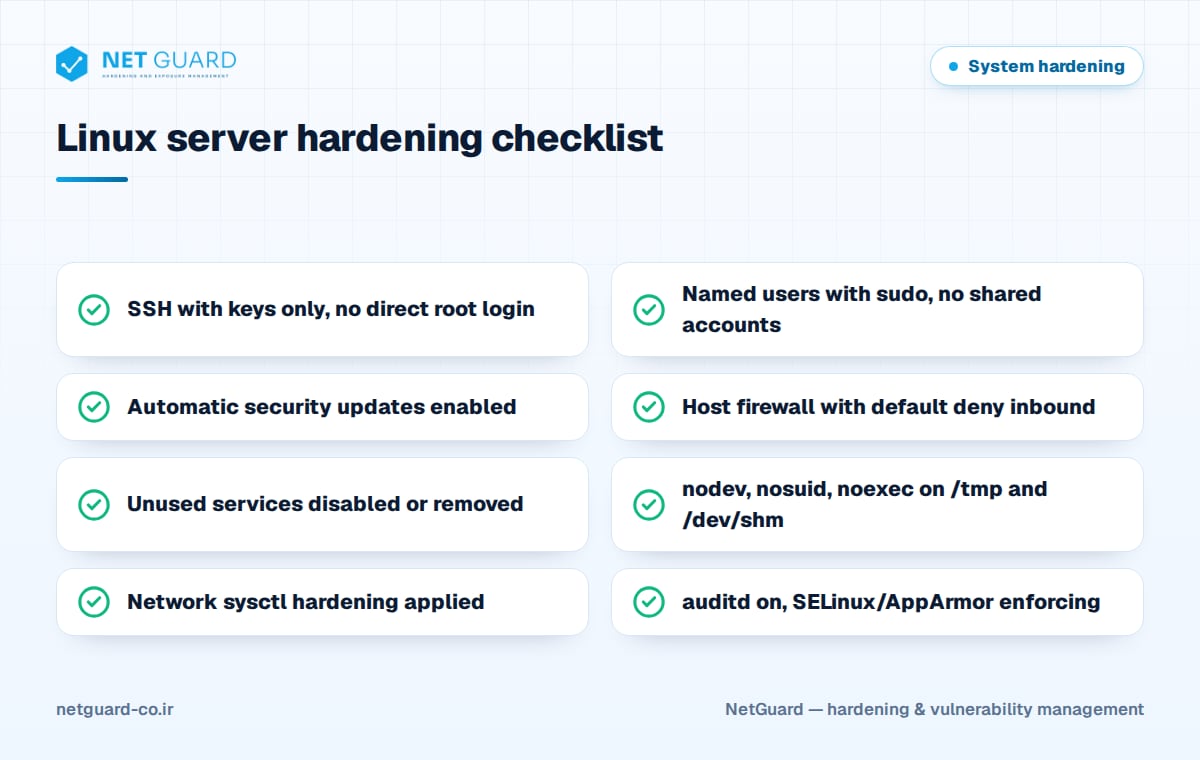
Before you start: choose your baseline from the CIS Benchmark for your exact distribution version, always keep an out-of-band access path (hypervisor console or iLO/iDRAC) so an SSH or firewall mistake does not lock you out, and test on a lab server before rolling out with Ansible or another configuration management tool.
Access: SSH, users and sudo
SSH hardening
Put your settings in a separate file under sshd_config.d. OpenSSH uses the first value it reads, and files in that directory are read in lexical order, so naming yours 00-hardening.conf makes it win over files such as 50-cloud-init.conf.
sudo tee /etc/ssh/sshd_config.d/00-hardening.conf > /dev/null <<'EOF'
PermitRootLogin no
PasswordAuthentication no
KbdInteractiveAuthentication no
PubkeyAuthentication yes
PermitEmptyPasswords no
MaxAuthTries 3
LoginGraceTime 60
ClientAliveInterval 300
ClientAliveCountMax 3
X11Forwarding no
AllowTcpForwarding no
AllowGroups sshusers
LogLevel VERBOSE
EOF
sudo groupadd -f sshusers && sudo usermod -aG sshusers alice
sudo sshd -t && sudo systemctl reload ssh    # RHEL: sudo systemctl reload sshd
sudo sshd -T | grep -Ei 'permitrootlogin|passwordauthentication|allowgroups'
Test a new login in a second window before closing your current session, and make sure your own account is in the AllowGroups group. Use ed25519 keys and restrict port 22 to the management network in the firewall.
Users, sudo and password policy
Every admin should have a personal account and use sudo for privileged work so actions are traceable. Avoid shared accounts and direct root logins:
awk -F: '($3 == 0) {print $1}' /etc/passwd          # only root should have UID 0
sudo awk -F: '($2 == "") {print $1}' /etc/shadow     # accounts with empty passwords
sudo visudo -f /etc/sudoers.d/10-hardening
# add these two lines in the editor:
#   Defaults use_pty
#   Defaults logfile="/var/log/sudo.log"
Set minlen to at least 14 in /etc/security/pwquality.conf, and set deny and unlock_time in /etc/security/faillock.conf to lock accounts after repeated failures. On RHEL, enable faillock with sudo authselect enable-feature with-faillock; on Ubuntu, add pam_faillock to the PAM configuration.
Updates and firewall
Automatic security updates
Security patches should not wait for a monthly maintenance window:
# Ubuntu / Debian
sudo apt install unattended-upgrades
sudo dpkg-reconfigure -plow unattended-upgrades
# RHEL / Rocky / AlmaLinux: set upgrade_type = security and apply_updates = yes
# in /etc/dnf/automatic.conf, then:
sudo dnf install dnf-automatic
sudo systemctl enable --now dnf-automatic.timer
Kernel updates only take effect after a reboot. Check /var/run/reboot-required on Ubuntu or needs-restarting -r on RHEL and schedule reboots.
Firewall: ufw, firewalld or nftables
Use one tool only; mixing them makes rules unpredictable. Ubuntu typically uses ufw and RHEL uses firewalld, and both ultimately program the kernel's netfilter:
# Ubuntu (ufw)
sudo ufw default deny incoming
sudo ufw default allow outgoing
sudo ufw allow from 10.10.50.0/24 to any port 22 proto tcp
sudo ufw enable
sudo ufw status verbose

# RHEL (firewalld)
sudo firewall-cmd --permanent --remove-service=ssh
sudo firewall-cmd --permanent --add-rich-rule='rule family="ipv4" source address="10.10.50.0/24" service name="ssh" accept'
sudo firewall-cmd --reload
sudo firewall-cmd --list-all
Services, filesystem and permissions
Unnecessary services
First list which services are enabled and which ports are listening, then disable or remove anything the server's role does not need:
systemctl list-unit-files --type=service --state=enabled
sudo ss -tulpn
sudo systemctl disable --now avahi-daemon.service avahi-daemon.socket
Telnet, rsh, FTP, NFS and a graphical desktop are not needed on most servers, and CIS recommends removing them.
The same logic applies to kernel modules. Modules such as cramfs or usb-storage have no use on a data center server, so block them from loading: add the lines install usb-storage /bin/false and blacklist usb-storage to a file such as /etc/modprobe.d/hardening.conf. Every module that never loads shrinks the kernel's attack surface.
Secure mount options
World-writable locations such as /tmp and /dev/shm are a favorite place to drop and run malware. noexec blocks execution, nosuid neutralizes SUID bits and nodev blocks device files:
# /etc/fstab
tmpfs  /tmp      tmpfs  defaults,rw,nosuid,nodev,noexec,relatime,size=2G  0 0
tmpfs  /dev/shm  tmpfs  defaults,rw,nosuid,nodev,noexec,relatime         0 0

sudo mount -o remount /dev/shm
findmnt -no OPTIONS /dev/shm
Apply the /tmp change with a reboot during a maintenance window. noexec on /tmp can break some installers and scripts, so test first. CIS also recommends separate partitions for /var, /var/log and /home.
Permissions on sensitive files
| File | Recommended mode | Owner |
|---|---|---|
| /etc/passwd and /etc/group | 644 | root:root |
| /etc/shadow | 640 or stricter (RHEL default is 000) | root:shadow or root:root |
| /etc/ssh/sshd_config | 600 | root:root |
| /etc/crontab | 600 | root:root |
sudo find / -xdev -type f -perm -0002 -print          # world-writable files
sudo find / -xdev -type f -perm -4000 -print          # SUID binaries to review
sudo find / -xdev \( -nouser -o -nogroup \) -print    # files with no owner
Network and kernel sysctl settings
These parameters control ICMP redirects, source routing and spoofed packets:
sudo tee /etc/sysctl.d/60-hardening.conf > /dev/null <<'EOF'
net.ipv4.ip_forward = 0
net.ipv4.conf.all.send_redirects = 0
net.ipv4.conf.default.send_redirects = 0
net.ipv4.conf.all.accept_redirects = 0
net.ipv4.conf.default.accept_redirects = 0
net.ipv6.conf.all.accept_redirects = 0
net.ipv6.conf.default.accept_redirects = 0
net.ipv4.conf.all.secure_redirects = 0
net.ipv4.conf.default.secure_redirects = 0
net.ipv4.conf.all.accept_source_route = 0
net.ipv4.conf.default.accept_source_route = 0
net.ipv4.conf.all.rp_filter = 1
net.ipv4.conf.default.rp_filter = 1
net.ipv4.conf.all.log_martians = 1
net.ipv4.icmp_echo_ignore_broadcasts = 1
net.ipv4.icmp_ignore_bogus_error_responses = 1
net.ipv4.tcp_syncookies = 1
kernel.randomize_va_space = 2
fs.suid_dumpable = 0
EOF
sudo sysctl --system
Note: routers, Docker hosts and Kubernetes nodes need ip_forward = 1; see our Docker and Kubernetes hardening guide for those environments. Strict rp_filter can also break asymmetric routing.
auditd, logging and SELinux/AppArmor
Auditing with auditd
auditd records changes to sensitive files and commands run with root privileges:
sudo apt install auditd audispd-plugins     # RHEL: sudo dnf install audit
sudo systemctl enable --now auditd
sudo tee /etc/audit/rules.d/50-hardening.rules > /dev/null <<'EOF'
-w /etc/passwd -p wa -k identity
-w /etc/shadow -p wa -k identity
-w /etc/group -p wa -k identity
-w /etc/sudoers -p wa -k scope
-w /etc/sudoers.d/ -p wa -k scope
-w /etc/ssh/sshd_config -p wa -k sshd
-a always,exit -F arch=b64 -S execve -F euid=0 -F auid>=1000 -F auid!=unset -k root_cmds
EOF
sudo augenrules --load
sudo auditctl -l
sudo ausearch -k identity --start today
Make sure journald keeps logs persistently (Storage=persistent in /etc/systemd/journald.conf) and forward logs to a central store with rsyslog or a SIEM agent; logs kept only on the server can be wiped by an intruder.
SELinux and AppArmor
Mandatory access control limits the damage even when a service is compromised. RHEL uses SELinux and Ubuntu uses AppArmor. The most common mistake is disabling SELinux to fix a problem; find the cause in the AVC log instead:
# RHEL: SELinux
getenforce
sudo setenforce 1        # also set SELINUX=enforcing in /etc/selinux/config
sudo ausearch -m AVC -ts recent
# Ubuntu: AppArmor (aa-enforce is in the apparmor-utils package)
sudo aa-status
sudo aa-enforce /etc/apparmor.d/<profile>     # switch a profile from complain to enforce
Auditing CIS compliance on Ubuntu and RHEL
After applying settings, measure compliance. Both distributions have official tooling:
# Ubuntu Pro: Ubuntu Security Guide (USG)
sudo pro enable usg
sudo apt install usg
sudo usg audit cis_level1_server

# RHEL: OpenSCAP with SCAP Security Guide
sudo dnf install openscap-scanner scap-security-guide
sudo oscap xccdf eval --profile xccdf_org.ssgproject.content_profile_cis_server_l1 \
  --results results.xml --report report.html \
  /usr/share/xml/scap/ssg/content/ssg-rhel9-ds.xml
usg fix and OpenSCAP's remediate option can apply settings automatically, but only after testing on a non-production server. Hardening once is not enough; audits must repeat to catch configuration drift. The overall cycle is explained in our complete system hardening guide.
How NetGuard helps
NetGuard runs authenticated scans that audit Ubuntu, RHEL and similar distributions against CIS Benchmarks and your custom baseline, from SSH and sysctl settings to file permissions and auditd status. Configuration drift between scans is reported, vulnerable packages are prioritized using exploit intelligence and asset criticality, and container images and Kubernetes can be checked as well. See the NetGuard hardening audit page for details.
Frequently asked questions
What is Linux server hardening?
Linux server hardening is a set of measures that reduce a Linux server's attack surface: key-only SSH, no direct root login, automatic security updates, an active firewall, removal of unused services, secure mount options and sysctl settings, and auditd with SELinux or AppArmor enforcing. It is usually based on the CIS Benchmark for the specific distribution and enforced with configuration management.
What are the most important Linux hardening steps?
If time is short, start here: disable password and direct root logins over SSH, restrict the SSH port to the management network, enable automatic security updates, turn on a default-deny firewall, and remove services that listen on open ports but are not used. These few steps neutralize a large share of common attacks against Linux servers exposed to untrusted networks.
Is there an official tool for Ubuntu server hardening?
Yes. Canonical provides the Ubuntu Security Guide (USG) with an Ubuntu Pro subscription, which can audit a server against CIS profiles and apply remediations automatically. For RHEL and compatible distributions, OpenSCAP with the scap-security-guide package does the same job. Independent configuration audit tools can also measure CIS compliance across mixed environments.
Should I disable SELinux?
No. Disabling SELinux is one of the most common and costly mistakes on RHEL servers because it removes an important defensive layer. If an application conflicts with SELinux, review the AVC logs, fix file contexts or enable the right boolean. If necessary, place only the affected domain in permissive mode temporarily instead of turning SELinux off system-wide.
How often should Linux hardening be audited?
At least monthly, and after every significant change such as a distribution upgrade, a new service or a new CIS Benchmark release. Weekly audits are recommended for internet-facing servers. Automated, scheduled audits help catch manual changes and configuration drift before they turn into an entry point for attackers.
- #Linux server hardening checklist
- #Linux hardening
- #Ubuntu server hardening
- #RHEL hardening
- #SSH hardening
- #CIS Ubuntu benchmark
- #sysctl hardening